For Ñ on a Windows numeric keypad, hold Alt, enter 0209, then release Alt. Lowercase ñ uses 0241. On a Mac with the ABC layout, press Option + N, release both keys, then press Shift + N for Ñ or n for ñ.
Copy and paste Ñ and ñ (enye)
Choose a character to copy, then paste it into your text.
Manual copy: Ñ ñ
This practice field is not submitted by this tool.Click Copy Ñ or Copy ñ, wait for the confirmation, and paste with Ctrl + V on Windows or Command + V on Mac. On a phone, touch and hold the destination field and choose Paste. If automatic copying is unavailable, select a letter on the manual-copy line.
Need a single letter for a surname, heading, or Spanish sentence? Start with the copy buttons. For repeated typing, choose your platform below. The shortcuts differ by keyboard layout and app; an Alt code is not the same thing as a Unicode code point.
Ñ and ñ: shortcuts and codes at a glance
| Method | Capital Ñ | Lowercase ñ |
|---|---|---|
| Windows numeric keypad | Alt + 0209 | Alt + 0241 |
| Mac ABC layout | Option + N; release; Shift + N | Option + N; release; n |
| Word for Windows Unicode | 00D1, then Alt + X | 00F1, then Alt + X |
| Unicode code point | U+00D1 | U+00F1 |
| Excel Unicode formula | =UNICHAR(209) | =UNICHAR(241) |
| Google Sheets formula | =CHAR(209) | =CHAR(241) |
A plus sign joins keys pressed together. A semicolon or “then” separates stages. For example, the Mac sequence does not mean holding Option down while typing the final letter.
How to type Ñ and ñ on Windows
Method 1: numeric-keypad Alt codes
- Place the cursor where the letter belongs.
- Enable Num Lock if your keypad requires it.
- Hold Alt while typing 0209 for Ñ, or 0241 for ñ, on the numeric keypad.
- Release Alt and check the inserted letter.
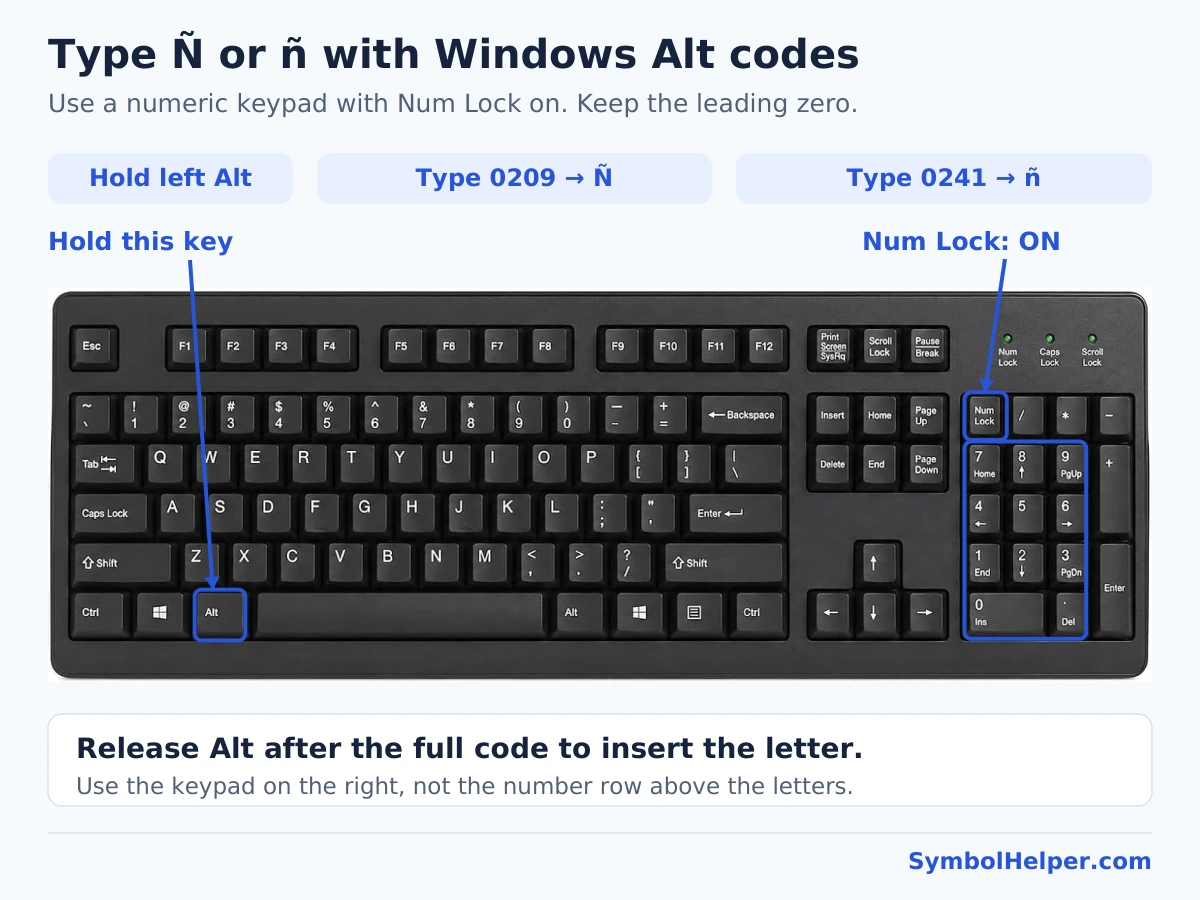
Keep the initial zero. The number row above QWERTY does not replace a numeric keypad for this method. If a laptop lacks a number pad, use Character Map or Word’s Unicode conversion instead. Microsoft lists the four-digit codes for both cases.
Method 2: Character Map, including laptops without a keypad
- Open Start, search for Character Map, and open the app.
- Choose a text font, such as Arial, that includes Spanish letters.
- Find Ñ or ñ in the grid. Check the case before selecting it.
- Click Select, then Copy, and paste into the destination app.
The grid depends on the selected font. If the letter is absent, switch fonts rather than selecting a similar-looking character. Microsoft’s character-entry guide describes Character Map and numeric-keypad requirements.
Method 3: the Windows symbol panel, where available
Press Windows + . while the cursor is in a text field, open Symbols, and browse the Latin-letter section if your Windows version offers it. Select Ñ or ñ when shown. Panel organization and search support vary; if the letter is missing, Character Map is the more predictable visual alternative. Do not assume the emoji search field searches every text symbol.
How to type Ñ and ñ on a Mac
Method 1: the ABC keyboard’s Option sequence
- Use the ABC input source.
- Press Option + N together to prepare the tilde accent.
- Release both keys.
- Press Shift + N for Ñ, or n for ñ.
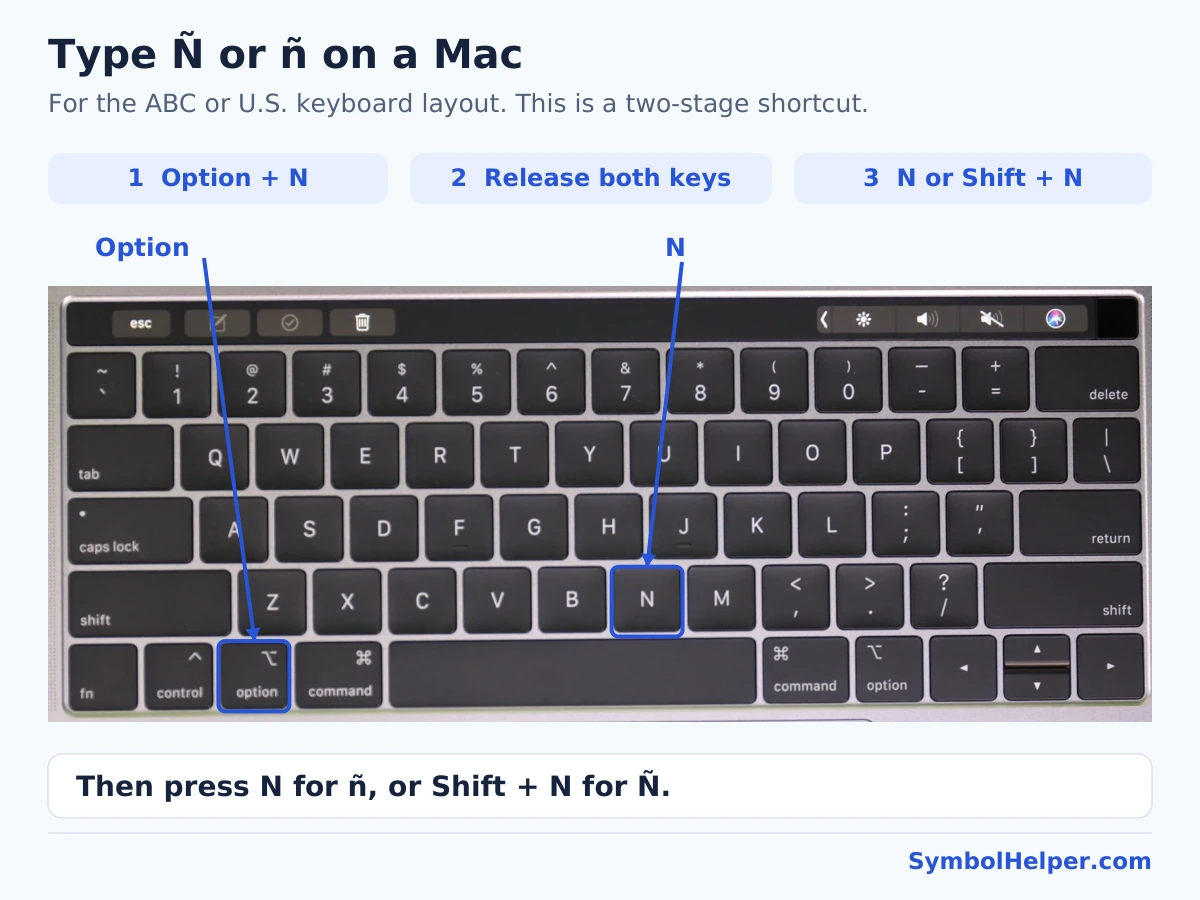
For a capitalized name such as Ñora, enter the initial Ñ with the sequence, then type the remaining letters normally. This is a two-stage accent sequence, not one three-key chord. Apple explains accent dead keys and their dependence on the active input source.
Method 2: hold the letter key
In a Mac app that supports the accent menu, hold n and choose ñ. For uppercase, hold Shift + N and choose Ñ. Click the required variant or use the number displayed below it. If holding the key only repeats the letter, try the Option sequence or Character Viewer.
Method 3: Character Viewer
- Choose Edit → Emoji & Symbols, or try Control + Command + Space.
- Expand the viewer if needed and search for n with tilde.
- Select the correct uppercase or lowercase result and insert it into your text.
Some apps use a different menu arrangement. Apple’s Character Viewer instructions cover finding and inserting characters. Keyboard Viewer is a separate tool for inspecting the keys on your current layout.
How to type Ñ in Microsoft Word
Method 1: the Word for Windows tilde shortcut
On a U.S. keyboard in desktop Word for Windows, press Ctrl + Shift + ~, release the keys, then type n for ñ. Use Shift + N at the final stage for Ñ. The tilde shares the grave-accent key on a U.S. layout. Other layouts can put it elsewhere.
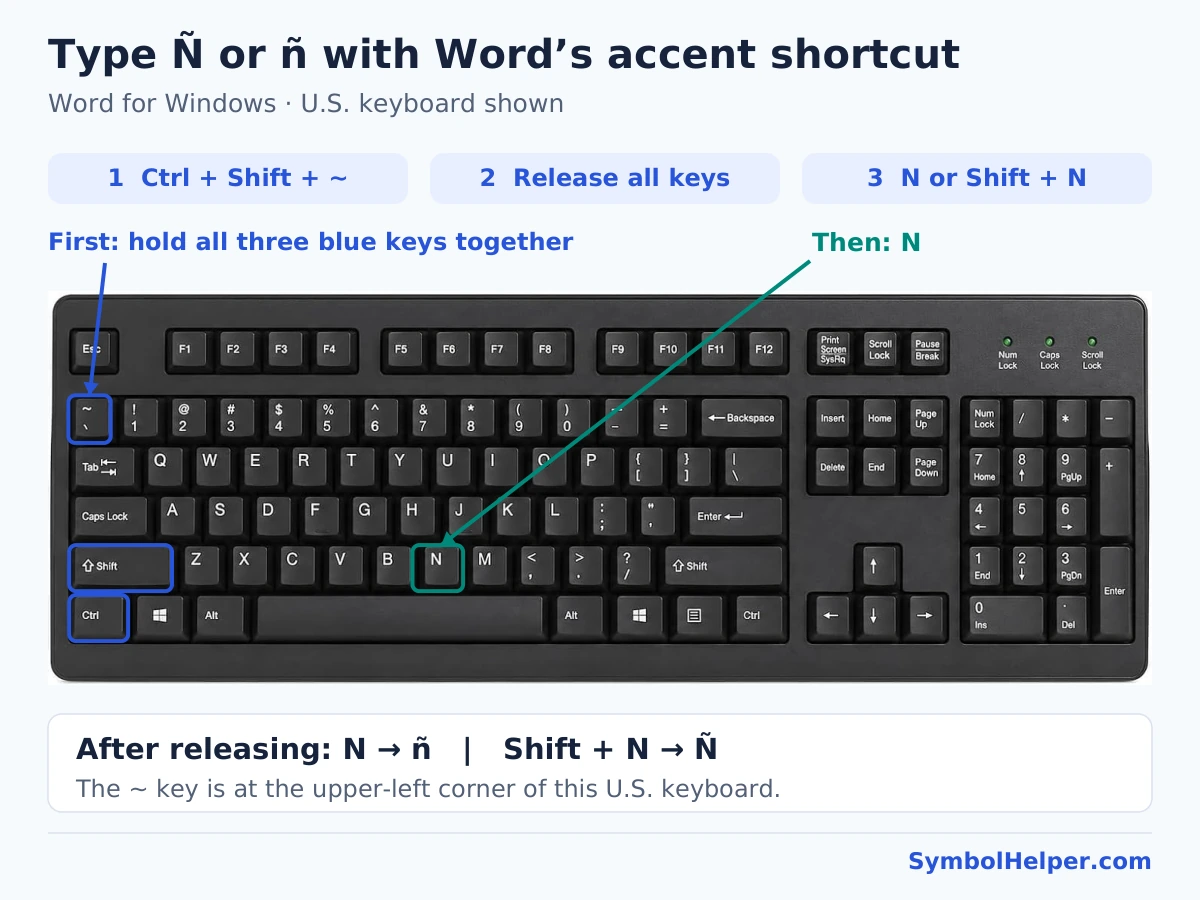
This shortcut requires no numeric keypad. It is a Word accent command; a browser or another app may interpret the keys differently. See Microsoft’s accent-shortcut table. On Mac, use the Mac input methods above.
Method 2: Unicode conversion with Alt + X
- Type 00D1 for Ñ or 00F1 for ñ.
- Select only the four code characters.
- Press Alt + X in Word for Windows.
Selection prevents Word from including an adjacent hexadecimal-looking letter or number in the conversion. Enter the digits without a U+ prefix for these steps. Word’s conversion is distinct from holding Alt while typing decimal keypad digits; do not transfer this shortcut to Excel or Google Docs.
Method 3: Insert Symbol
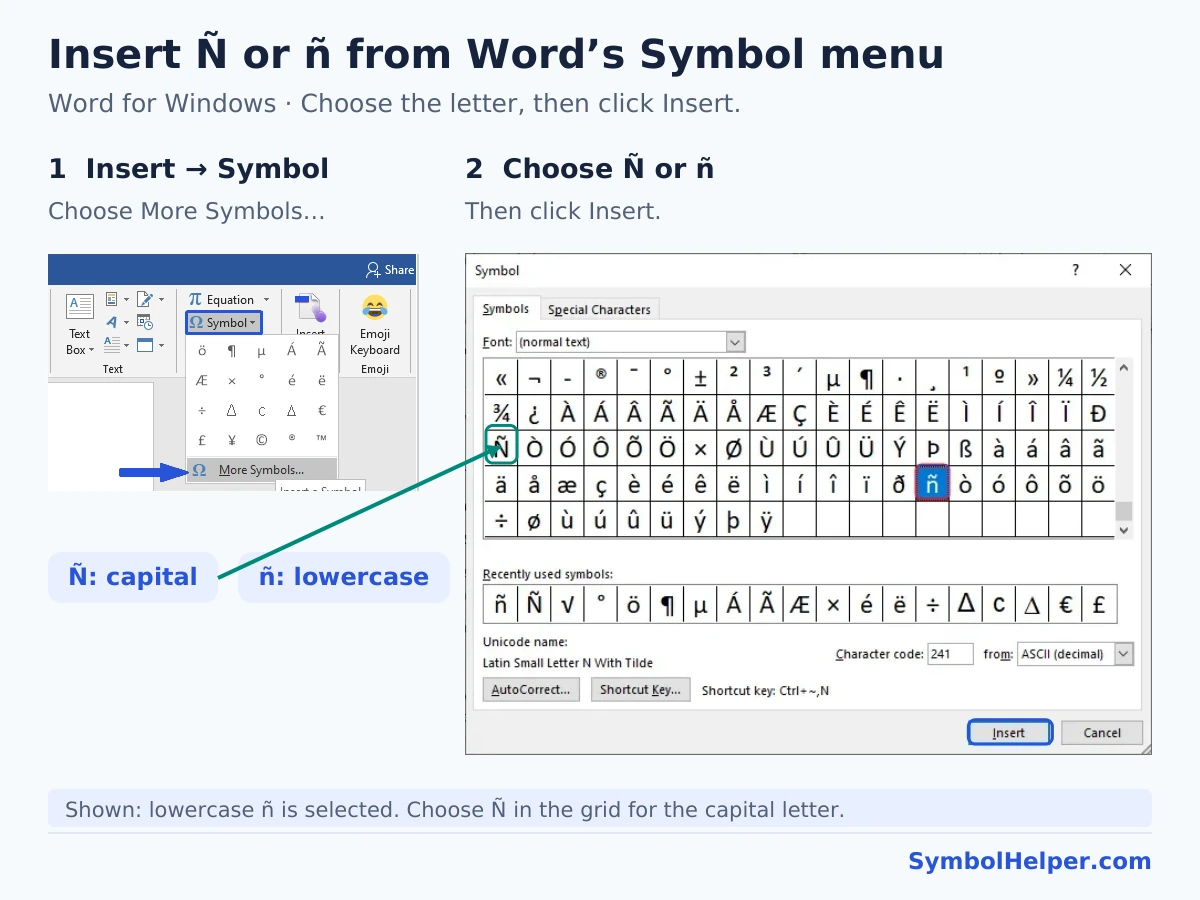
In Word for Windows, choose Insert → Symbol → More Symbols. Select a normal text font, choose Latin-1 Supplement if available, select Ñ or ñ, and click Insert. In Word for Mac, use Insert → Advanced Symbol → Symbols when that menu is available. Microsoft provides the Mac symbol-menu steps.
Method 4: create an AutoCorrect entry
- In desktop Word for Windows, insert and select ñ.
- Go to File → Options → Proofing → AutoCorrect Options.
- Enable Replace text as you type. Use an uncommon trigger such as
;enyein Replace and ñ in With. - Click Add, confirm the dialogs, then test the trigger followed by Space. Use a separate trigger for Ñ if needed.
Pick a trigger you would not normally write; otherwise Word can replace intended text. Desktop and web editions have different customization options. Microsoft’s reusable-text instructions explain the AutoCorrect workflow.
Insert Ñ in Excel and PowerPoint
Excel: enter a name or generate the letter with a formula
For ordinary cell text, edit the cell and paste Ñ or ñ. Windows Alt codes and the Mac Option sequence are also options when supported by your setup. Excel for Windows includes Insert → Symbol.
For a formula result, use =UNICHAR(209) for Ñ or =UNICHAR(241) for ñ. To build a surname, ="Pe"&UNICHAR(241)&"a" returns Peña. These are decimal Unicode numbers. UNICHAR avoids relying on the computer’s older character set, unlike Excel’s CHAR function. The examples use English function names; localized Excel editions may name functions differently.
PowerPoint: insert into a text box
Click inside a slide’s text box before pasting or using a keyboard method. In PowerPoint for Windows, use Insert → Symbol, choose a text font, locate Ñ or ñ, and insert it. For Mac, use the Option sequence or the available symbol menu. Word’s Alt + X conversion is not a general PowerPoint command.
Insert Ñ in Google Docs and Sheets
Google Docs: use Special characters
- On a computer, click the insertion point in your document.
- Choose Insert → Symbols → Special characters. Some interfaces show Special characters directly under Insert.
- Enter 00D1 for Ñ or 00F1 for ñ in the Unicode search field, or draw the letter.
- Check the case and click the matching result.
These steps follow Google’s special-character guidance. You can also paste the letter directly. On a Mac with ABC selected, the Option sequence can enter it while you write in Docs.
Google Sheets: paste or use CHAR
Sheets does not offer the same Special characters dialog. Paste the letter into a cell, or enter =CHAR(209) for Ñ and =CHAR(241) for ñ. Unlike Excel’s CHAR, Google Sheets CHAR uses Unicode values. Copy a formula result and paste values only if you want to keep the resulting text without its formula.
How to type ñ on a Chromebook
With English (US) with International selected, press AltGr + N to enter ñ. AltGr is the right Alt key. Add or select the input method under Settings → Device → Keyboard → Change input settings. This shortcut depends on that input method; it is not a Windows numeric Alt code. Use the capital Ñ copy button above when you need uppercase. See Google’s Chromebook language and special-character instructions.
Type Ñ on iPhone, iPad, and Android
iPhone and iPad onscreen keyboards
Touch and hold n, keep your finger down, slide to ñ, and release. For Ñ, enable Shift before holding N. Variants depend on the keyboard language and app. Review the completed name after autocorrect runs; the person’s spelling should determine the result.
Android with Gboard
Hold n to show alternate characters, then choose ñ. Turn on uppercase first for Ñ. If the variant is unavailable, check Gboard’s languages and add Spanish when appropriate. Google documents long-press options and adding a keyboard language. Other Android keyboards can use different menus. Copy/paste works without changing your entire phone’s language.
Typing Spanish regularly? Use a Spanish layout
A Spanish keyboard layout gives ñ its own key. Select the layout that matches your needs, then use Windows’ On-Screen Keyboard or the Mac Keyboard Viewer to locate that key. A software layout changes what keys produce; it does not change the labels printed on your physical keyboard.
On Windows, add a keyboard through your language’s keyboard options in Settings and use Windows + Space to switch available layouts. On Mac, add Spanish in System Settings → Keyboard → Text Input → Edit and choose it from the Input menu. Older macOS versions organize these controls differently. For an occasional full sentence, our companion Spanish keyboard on AccentPad offers ñ alongside Spanish vowels and punctuation.
Ñ versus ñ, ń, and n~
| Text | What it contains | HTML source |
|---|---|---|
| Ñ | Capital N with tilde, U+00D1 | Ñ or Ñ |
| ñ | Small N with tilde, U+00F1 | ñ or ñ |
| ń | N with an acute accent; a different letter | Do not substitute for ñ |
| n~ | Ordinary n followed by a spacing tilde | Two visible characters, not ñ |
Unicode also permits n followed by the combining tilde U+0303 to represent ñ. That decomposed spelling can be valid; it is different from n followed by the spacing symbol ~. The copy buttons here provide the precomposed letters in the Unicode Latin-1 Supplement chart (PDF). HTML entities belong in HTML source, not ordinary Word text.
Troubleshooting and common questions
Why does my Alt code do nothing?
Check that you used the numeric keypad, kept the initial zero, and enabled Num Lock if needed. An embedded laptop keypad may require a manufacturer-specific setting. Instead of guessing an Fn combination, use Character Map or the Word Unicode method.
Why do I get a tilde followed by an ordinary N?
On Mac ABC, release Option + N before the last letter. On Word for Windows, release the accent shortcut before typing n. Typing a normal N followed by ~ does not join them into Ñ.
Is there a different Alt code for capital Ñ?
Yes. Use 0209 for Ñ and 0241 for ñ. Caps Lock does not change which character a numeric Alt code represents.
Can I use ñ in a name, password, or username?
Use the spelling required by the name, but check the destination’s allowed-character rules for account fields. A site that restricts usernames to basic Latin letters may reject ñ even when your keyboard entered it correctly. Do not change someone’s name merely because a shortcut was inconvenient.