To type the plus-minus symbol (±) on Windows, hold Alt, enter 0177 on the numeric keypad, then release Alt. On a Mac with a U.S. or ABC layout, press Option + Shift + =. In Word for Windows, type 00B1, select the code, and press Alt + X.
Plus-minus symbol copy and paste
Choose a character to copy, then paste it into your text.
Manual copy: ±
Click Copy ±, then paste with Ctrl + V on Windows or Command + V on Mac. On a phone, touch and hold the text field and choose Paste. If the button doesn’t work, select and copy the symbol on the manual-copy line.
Plus-minus shortcuts and codes at a glance
| Device or format | How to enter ± | What to check |
|---|---|---|
| Windows | Alt + 0177 | Use the numeric keypad; keep the leading zero |
| Mac, U.S. / ABC | Option + Shift + = | Press all three keys together |
| Word for Windows | 00B1, then Alt + X | Select just the four code characters |
| Word equation | \pm, then Space | Use a supported desktop equation editor |
| Excel | =UNICHAR(177) | Creates text, not a plus-or-minus calculation |
| Google Sheets | =CHAR(177) | Uses decimal Unicode value 177 |
| Unicode | U+00B1 | Hexadecimal code point |
| HTML source | ± or ± | For HTML, not an ordinary keyboard shortcut |
What does the plus-minus symbol mean?
± means “plus or minus.” In an expression, it can give two possible answers. In a measurement, it can show a stated tolerance or uncertainty.
| Example | How to read it |
|---|---|
| x = 7 ± 2 | The two values are 7 + 2 = 9 and 7 − 2 = 5. |
| 10 ± 0.5 mm, as a specified tolerance | The lower limit is 9.5 mm and the upper limit is 10.5 mm. |
| A reported value followed by ± | Read the accompanying explanation to learn what the quantity after ± represents. |
In a statistical report, check what the number after ± represents—it might be standard deviation, standard error or a confidence interval. The symbol alone doesn’t tell you which.
How to type the plus-minus symbol on Windows
Method 1: Alt + 0177 with a numeric keypad
- Click where you want ± to appear.
- Turn on Num Lock if your keypad requires it.
- Hold the left Alt key.
- While holding Alt, type 0177 on the numeric keypad.
- Release Alt and check that the result is ±.
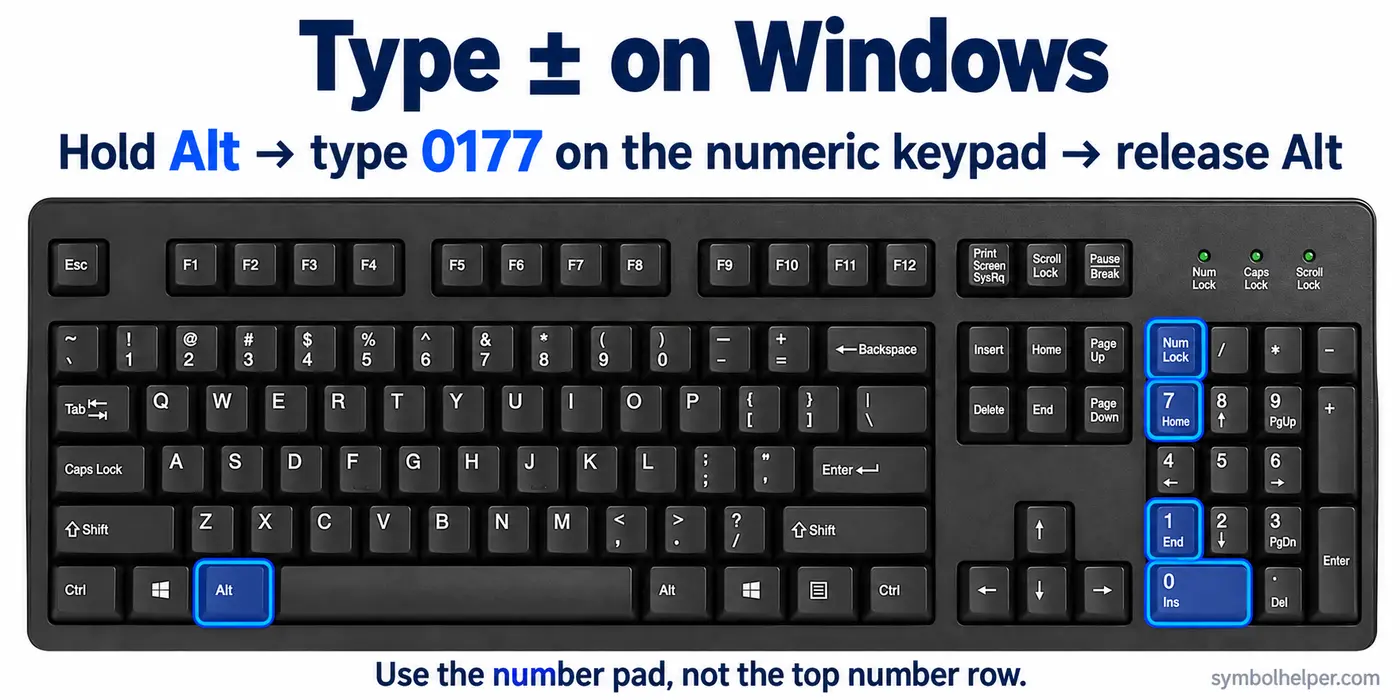
Keep the leading zero in 0177 and use the numeric keypad. The top number row won’t work for this method. The code is listed in the University at Buffalo’s special-character guide. If your app gives a different result, try Character Map below.
Method 2: Character Map, with or without a number pad
- Open Start, search for Character Map, and open it.
- Choose a text font such as Arial.
- Find ±. With Advanced view enabled and Unicode selected, search for plus minus and click Search, as shown below. Alternatively, enter 00B1 in the Go to Unicode field when available.
- Select ±, click Select, then Copy.
- Return to your document and paste.
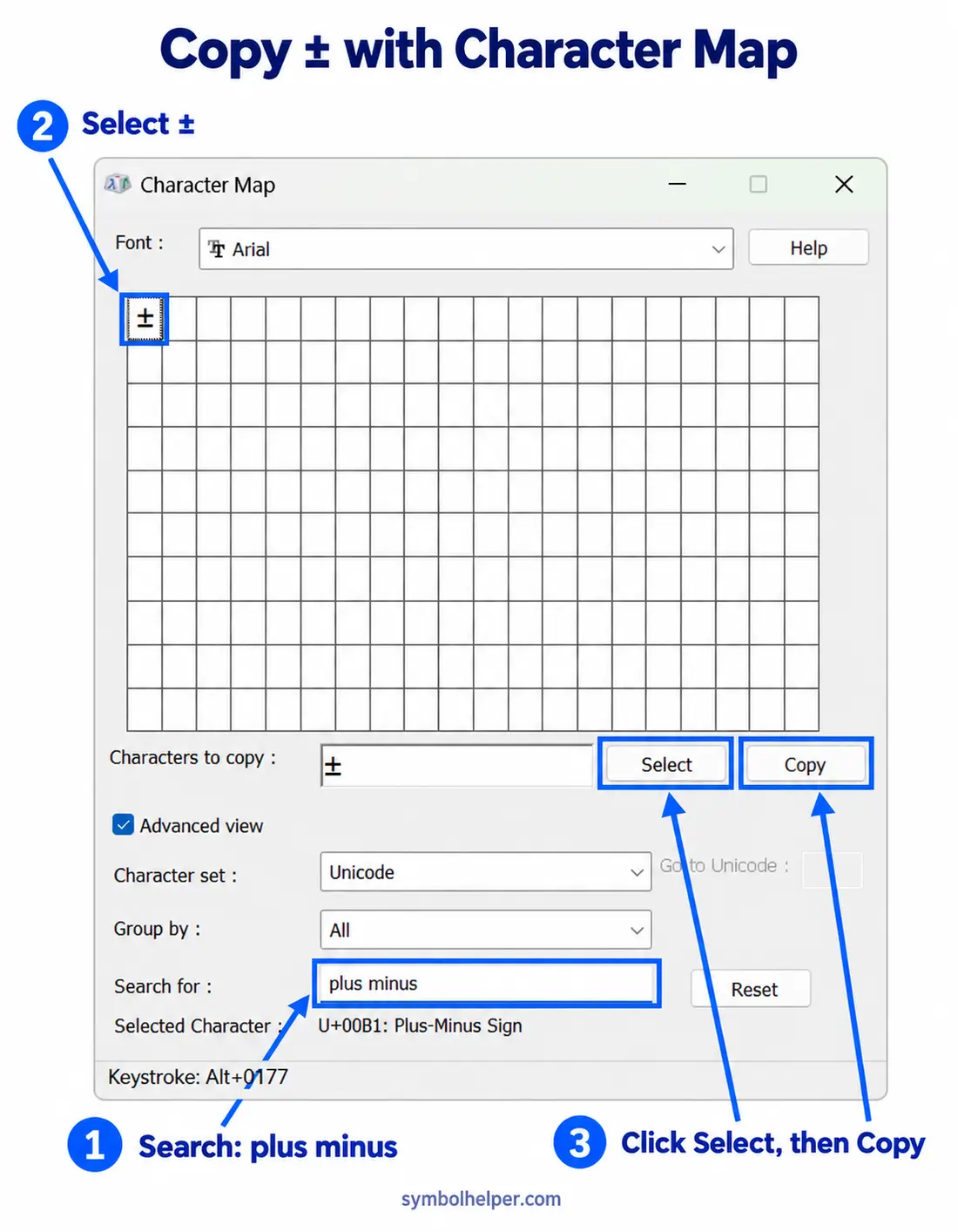
Can’t find ±? Try another font, such as Arial. Microsoft’s character-entry guide has more help with Character Map and Unicode.
Method 3: Windows’ symbol panel, when available
Press Windows + ., open Symbols, and look for ± among the math symbols. The available categories vary by Windows version. If you can’t find it, use Character Map instead.
How to type ± on a laptop without a number pad
Without a number pad, use Character Map or copy ± from this page. In Word for Windows, you can also type 00B1 and press Alt + X, as explained below. Some laptops have an embedded keypad; check your keyboard’s instructions before trying an Fn combination.
How to type the plus-minus symbol on a Mac
Method 1: Option + Shift + equals
- Click the insertion point in your document or text field.
- With the U.S. or ABC input source selected, hold Option and Shift.
- Press the equals (=) key, then release the keys.
- Check that ± was inserted.
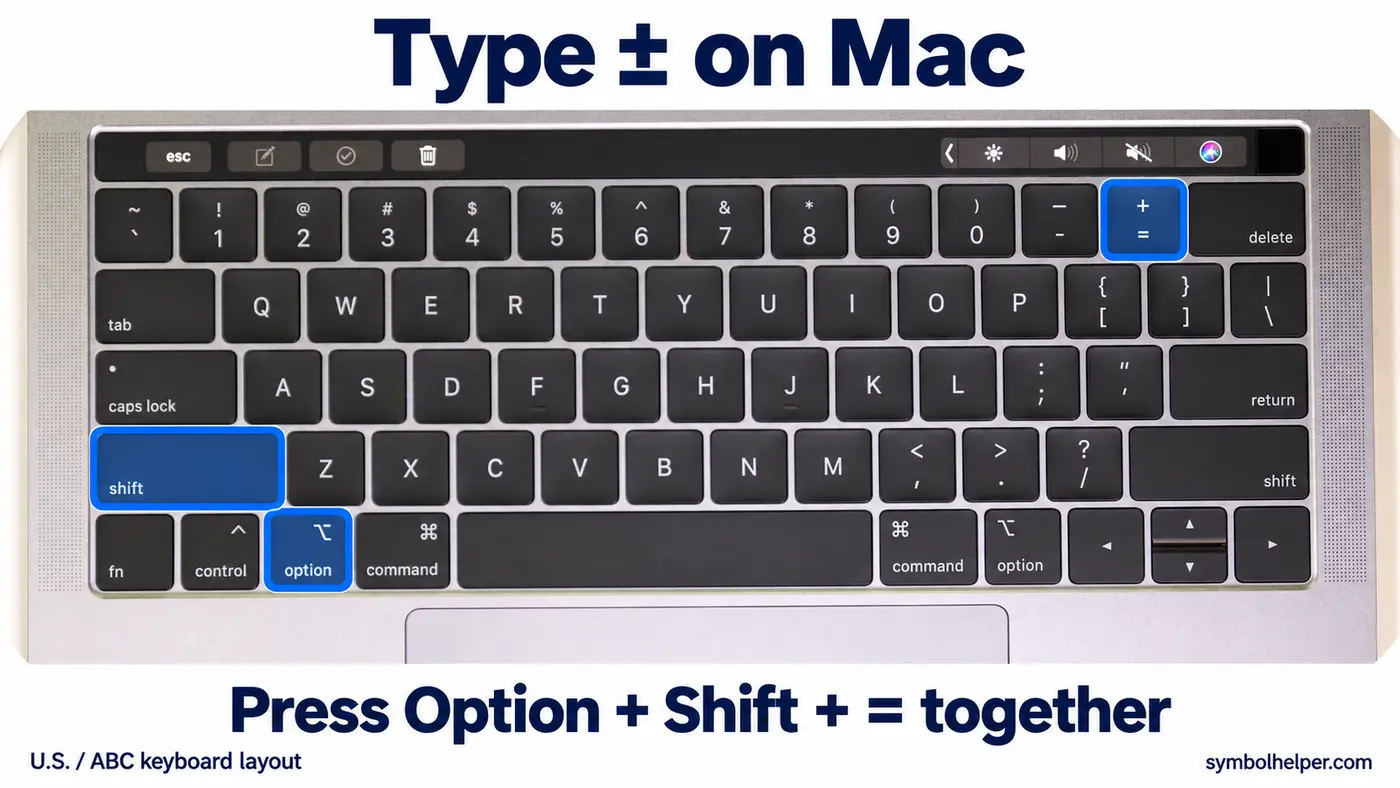
The = key also has a plus sign on a U.S. keyboard. Press it while holding both modifiers. Penn State’s Mac shortcut table lists this combination. If you use a different layout and get another character, try Character Viewer.
Method 2: Character Viewer
- Choose Edit → Emoji & Symbols, or try Control + Command + Space in a supported app.
- Search for plus minus and expand the viewer if necessary.
- Choose the ± character and insert it. If shown, check for Unicode U+00B1.
Character Viewer is useful when your keyboard layout doesn’t match the shortcut. See Apple’s guide to inserting symbols for help opening the full viewer.
How to insert ± in Microsoft Word
Method 1: convert 00B1 with Alt + X on Windows
- Type 00B1 in the document: zero, zero, B, one.
- Select just those four characters.
- Press Alt + X to replace the code with ±.
Select only 00B1 so Word doesn’t include any nearby letters or numbers. Leave out the U+ prefix. This shortcut is for Word on Windows.
Method 2: use Insert Symbol
In Word for Windows, choose Insert → Symbol → More Symbols. Select a suitable text font. Find ± under Latin-1 Supplement if subsets are available, or choose Unicode hexadecimal and enter 00B1. Select the character and click Insert.
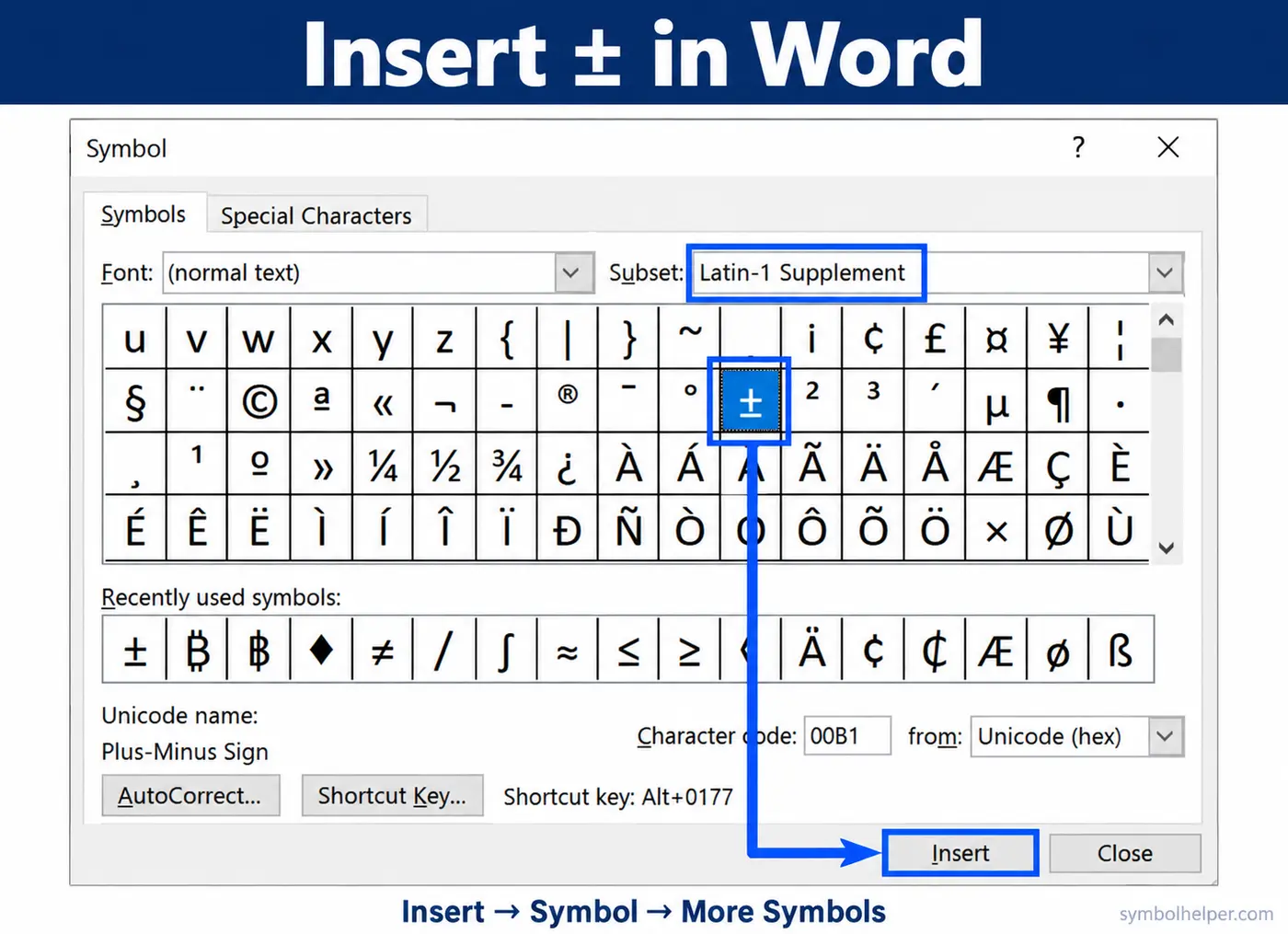
In Word for Mac, try Insert → Advanced Symbol → Symbols, or use the Mac keyboard shortcut above. Microsoft’s symbol-menu guide shows the Mac dialog.
Method 3: use an equation command
- In desktop Word, choose Insert → Equation.
- For Word’s Math AutoCorrect method, select Unicode input mode in the equation settings.
- Type
\pmand press Space to convert it to ±.
This command belongs inside an equation. In a normal paragraph, it only converts if outside-equation Math AutoCorrect is enabled. Microsoft’s Math AutoCorrect reference also lists \mp for ∓.
Plus-minus in Excel: display it or calculate both values
Show ± in a cell or label
Paste ± while editing a cell, use Insert → Symbol in desktop Excel for Windows, or enter =UNICHAR(177). To join values in A1 and B1 with the symbol, use =A1&" "&UNICHAR(177)&" "&B1. With 10 in A1 and 0.5 in B1, this displays 10 ± 0.5.
UNICHAR uses the Unicode character number, so it’s a better choice here than Excel’s older CHAR function. Formula names and separators may differ in other language settings.
Calculate the upper and lower results separately
Excel does not use ± as a calculation operator. If A1 contains 10 and B1 contains 0.5, enter =A1+B1 for 10.5 and =A1-B1 for 9.5 in separate cells. Keep the original values numeric; a combined “10 ± 0.5” label is text. See Microsoft’s list of Excel calculation operators.
Insert ± in Google Docs, Sheets and PowerPoint
Google Docs: Special characters
- On a computer, place the cursor in your document.
- Choose Insert → Symbols → Special characters. Some interfaces show Special characters directly under Insert.
- Enter 00B1 in the Unicode search field, or draw the plus-over-minus shape.
- Click ± to insert it.
These steps follow Google’s special-character guide. In the mobile app, copy and paste ± if the menu isn’t available.
Google Sheets: use CHAR or paste
Enter =CHAR(177) to return ±. A combined label can use =A1&" "&CHAR(177)&" "&B1. Google Sheets CHAR uses decimal Unicode values. Sheets does not have Docs’ Special characters dialog. To calculate both results, use separate addition and subtraction formulas as in the Excel example.
PowerPoint: insert into a text box
Click inside a slide’s text box, then paste ±. In PowerPoint for Windows, you can also choose Insert → Symbol. Use Insert → Equation for a mathematical expression.
Type ± on iPhone, Android or Chromebook
On a phone, copy ± from this page, touch and hold where you want it, then tap Paste. On a Chromebook, paste with Ctrl + V or use the Google Docs method above.
Your phone’s keyboard may also offer ± on a symbol page or through a long press. Its location depends on the keyboard app and language settings.
Save an iPhone text replacement
- Copy ±.
- Open Settings → General → Keyboard → Text Replacement and tap the add button.
- Paste ± into Phrase and enter an uncommon shortcut such as
;pm. - Save and test it in an app that supports replacements.
Choose an uncommon trigger so the shortcut won’t replace an ordinary word. See Apple’s text-replacement guide for details. On Android, look for similar options in your keyboard app’s dictionary or shortcut settings.
± versus ∓ and +/-: which should you use?
| Text | Identity | Use |
|---|---|---|
| ± | U+00B1, PLUS-MINUS SIGN | Plus above minus; the main character in this guide. |
| ∓ | U+2213, MINUS-OR-PLUS SIGN | Minus above plus; use when the notation calls for the opposite sign order. |
| +/- | Three ordinary keyboard characters | An informal text alternative, not the single ± character. |
When ± and ∓ appear together, read the top signs together, then the bottom signs. For example, a ± b and a ∓ b pair a + b with a − b, then the other way around.
The Unicode Latin-1 Supplement chart (PDF) identifies ± as U+00B1. For ∓ and other related characters, visit our math-symbol collection.
Unicode and HTML codes for the plus-minus sign
The Unicode code point is U+00B1; its decimal value is 177. In HTML source, ±, ± and ± represent ±. Penn State’s math entity chart lists these references.
These codes are for HTML source. In a Word document or message, paste the actual ± character; typing ± usually leaves the code visible.
Troubleshooting and common questions
Why is Alt + 0177 not working?
Check the numeric keypad, Num Lock and the leading zero in 0177. Keep Alt held down until you’ve entered all four digits. If your keyboard has no keypad or the app intercepts the shortcut, use Character Map or Word’s 00B1 → Alt + X method.
Can I use Alt + 241 instead?
Alt + 241 can produce ± in some legacy PC character sets, but the result depends on the app and character settings. Start with Alt + 0177. If it fails, use Character Map or Word’s Unicode method. The Unicode decimal value of ± is 177, not 241.
Why do I see a box instead of ±?
Try another text font and paste the symbol into a different app. If it appears correctly there, the original font or app may not support it. Check exported PDFs too.
Sources and further help
Prepared with AI assistance and checked against the sources linked above. Keyboard layouts and app versions can differ. If a step doesn’t match your setup, let us know.
For related characters, browse math symbols or use the Alt-code finder.