The bullet point symbol • marks items in a list or separates short pieces of text. You can copy it directly, use a keyboard shortcut, or create a formatted bulleted list in your application.
The right method depends on what you need: one bullet character inside text, or a list with automatically aligned bullet points.
Below are eight ways to insert •, followed by instructions for automatic lists in Word, PowerPoint and Google Docs. Each method has its own matching visual. Select an image to view it at full size.
Quick answers: how to type a bullet point
- Windows: hold Alt, type 0149 on the numeric keypad, then release Alt.
- Mac with a U.S. keyboard layout: press Option + 8.
- Word for Windows: type 2022, select the code, and press Alt + X.
- Google Docs bulleted list: use Ctrl + Shift + 8 on Windows or Command + Shift + 8 on Mac.
- Any device: copy • below and paste it into a text field.
1. Copy and paste the bullet symbol
Use this method in a document, email, message or other text field. The button copies one • character.
- Select Copy bullet point symbol above. Wait for the copied message.
- Click or tap where you want the bullet in your document or message.
- Paste with Ctrl + V on Windows or Command + V on Mac. On a phone, touch and hold the destination text field and choose Paste.
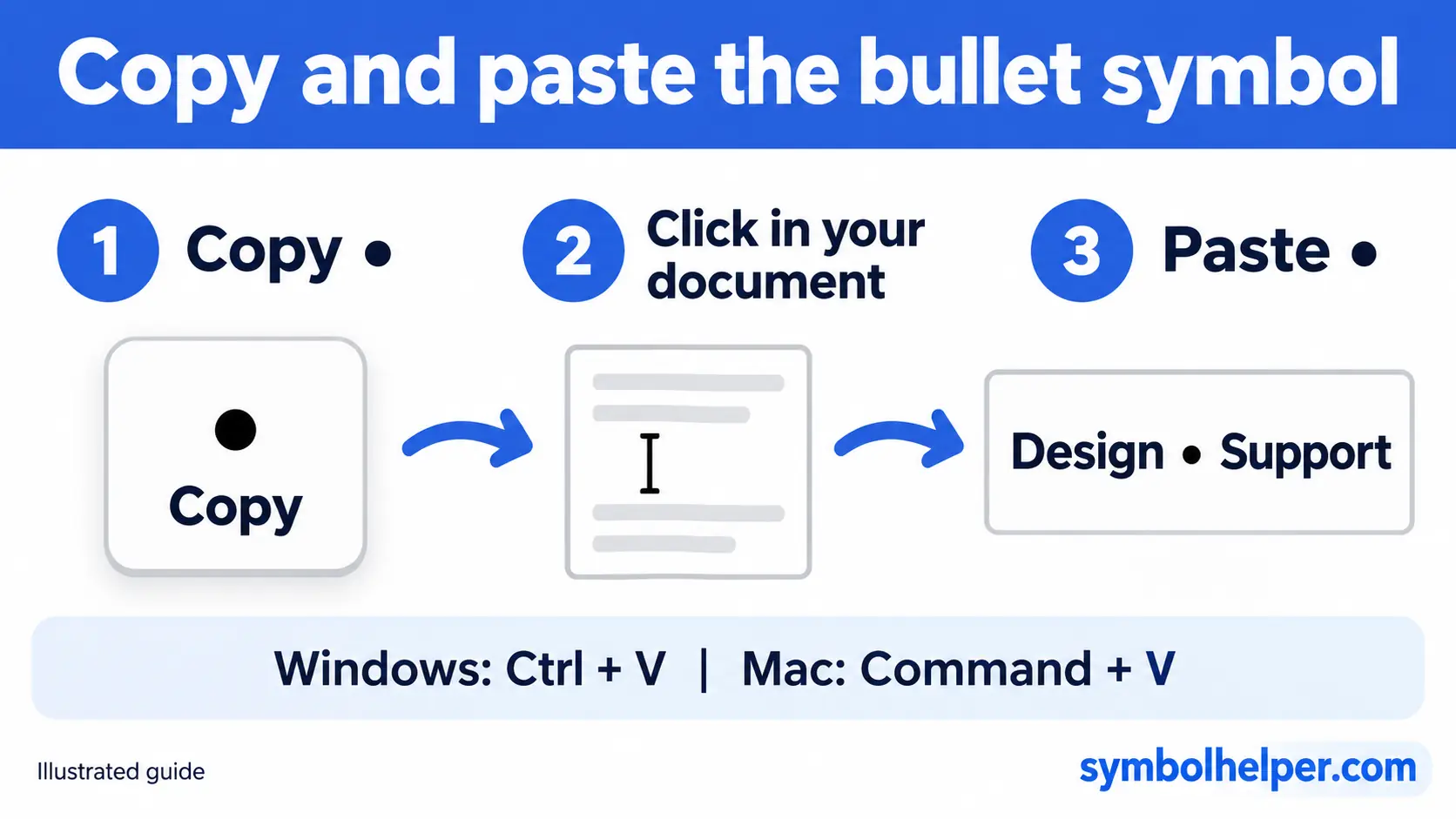
For example: Design • Development • Support. A pasted bullet is an ordinary text character. It does not automatically create a list, apply indentation, or add another bullet when you press Enter.
If the button cannot access the clipboard, expand Copy manually if the button is unavailable, select the character, and use your device’s Copy command.
2. Windows: type Alt + 0149
On a Windows keyboard with a numeric keypad:
- Click where you want the bullet.
- Turn on Num Lock if necessary.
- Hold Alt.
- Type 0149 on the numeric keypad.
- Release Alt to insert •.
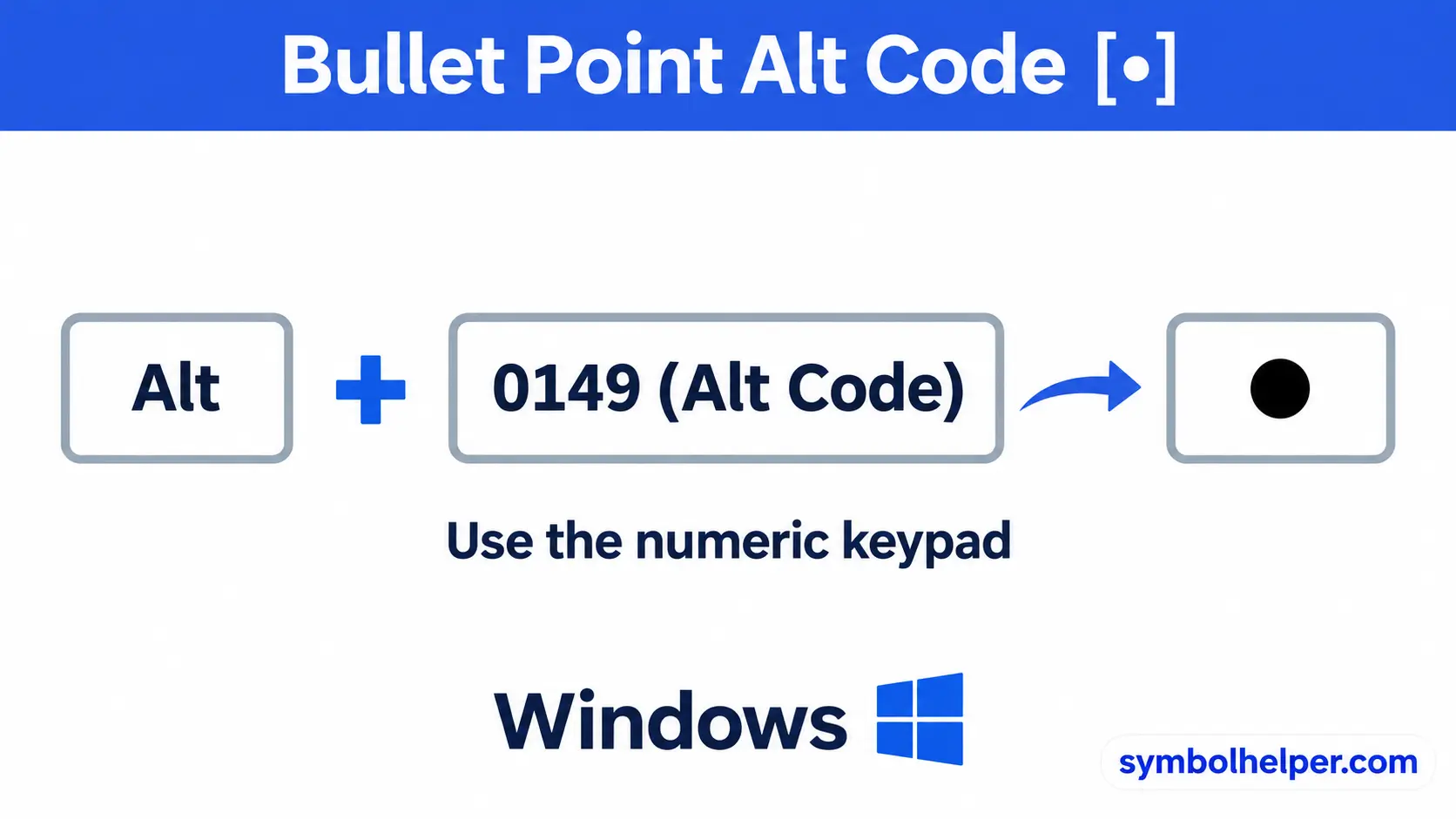
Use the keypad rather than the number row above the letters. Keep the initial zero in 0149. Microsoft lists this combination for • in its character-shortcut reference. Application support can vary; use copy and paste or a symbol picker if it does not work in your destination field.
Use an alternative without a numeric keypad
A laptop does not need a numeric keypad to insert a bullet. Copy • from this page, or use your application’s symbol menu. In Word for Windows, the Unicode method below is another option. Avoid treating a laptop’s top-row number keys as a numeric keypad; they do not perform the same function for traditional Alt codes.
3. Windows: use Character Map
Character Map lets you find and copy • without a numeric keypad. These steps apply to the Windows desktop app:
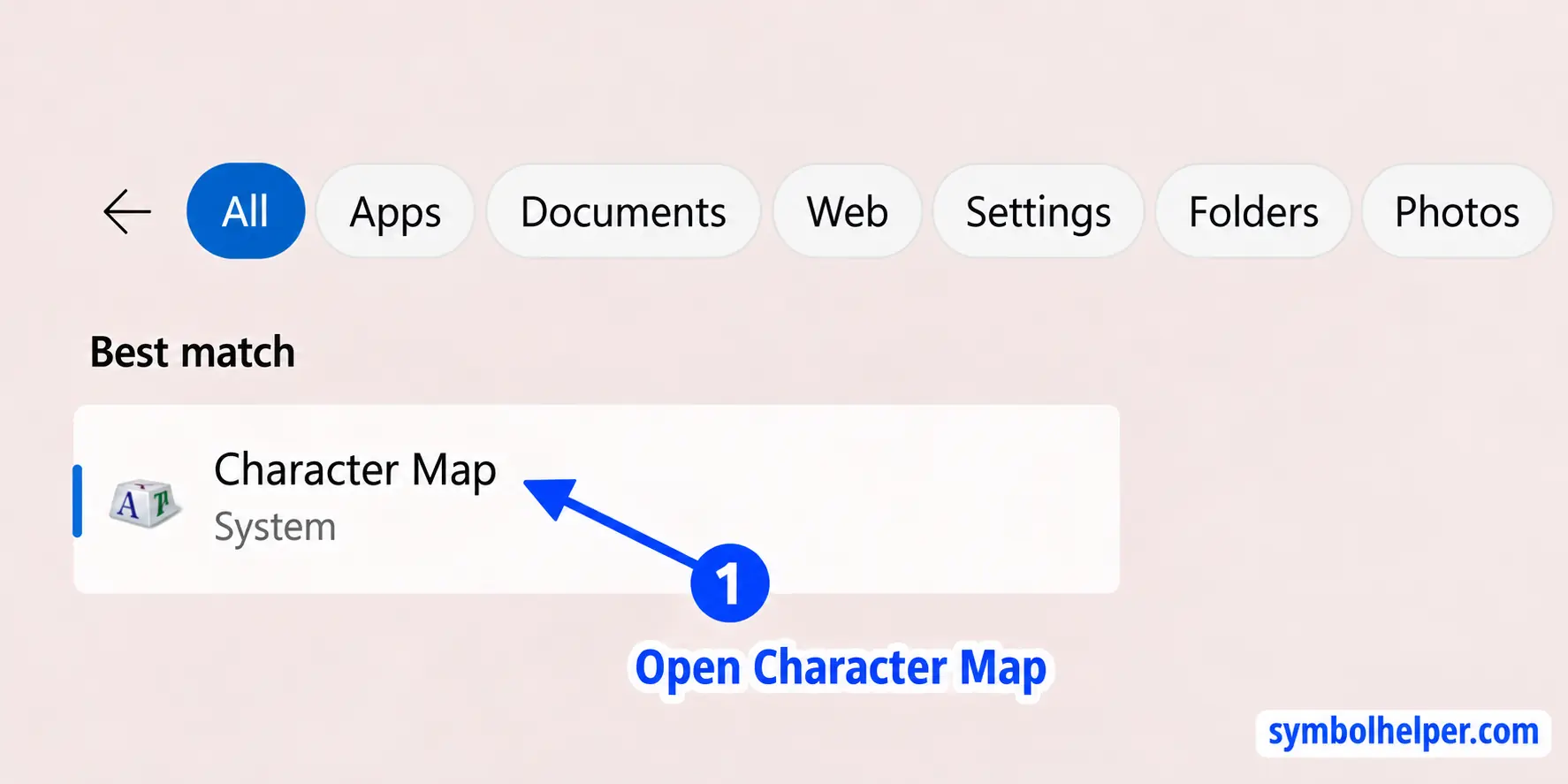
- Open Start, type Character Map, and open the matching app.
- Choose a font such as Arial that includes the bullet character.
- Check Advanced view. Keep Character set set to Unicode and Group by set to All.
- In Search for, type bullet, then click Search.
- Select the filled dot •. Check the status line for U+2022: Bullet; similar-looking results are different characters.
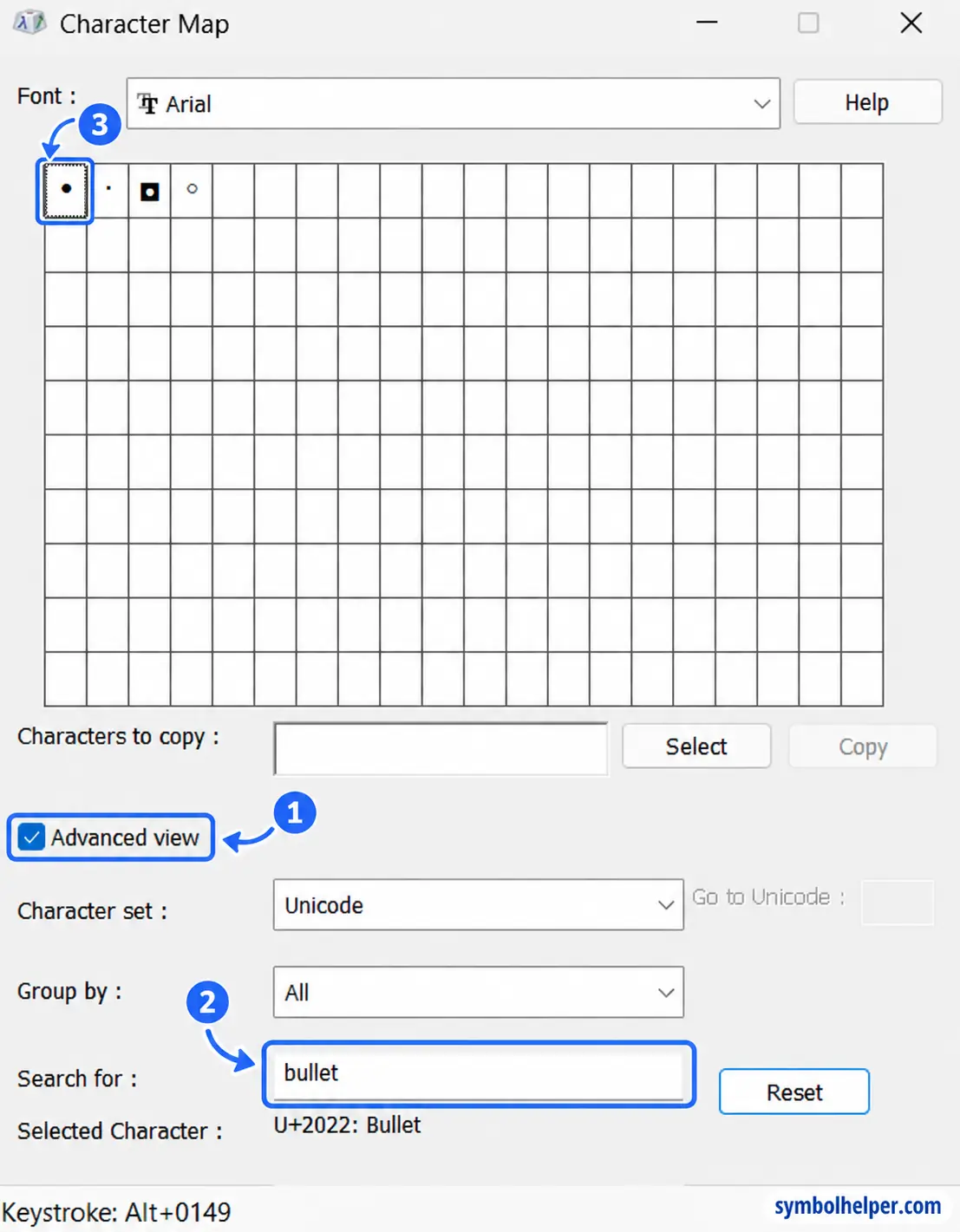
- Click Select to add • to Characters to copy.
- Click Copy.
- Return to your document or text field and press Ctrl + V.
After a search, the Search button changes to Reset, as shown in the screenshot. Use Reset to clear the results. If the bullet is missing, change the font and search again. See Microsoft’s Character Map instructions.
4. Mac: press Option + 8
With the U.S. input layout, use this keyboard shortcut to enter one bullet:
- Click where you want •.
- Hold Option and press 8.
- Release the keys and continue typing.
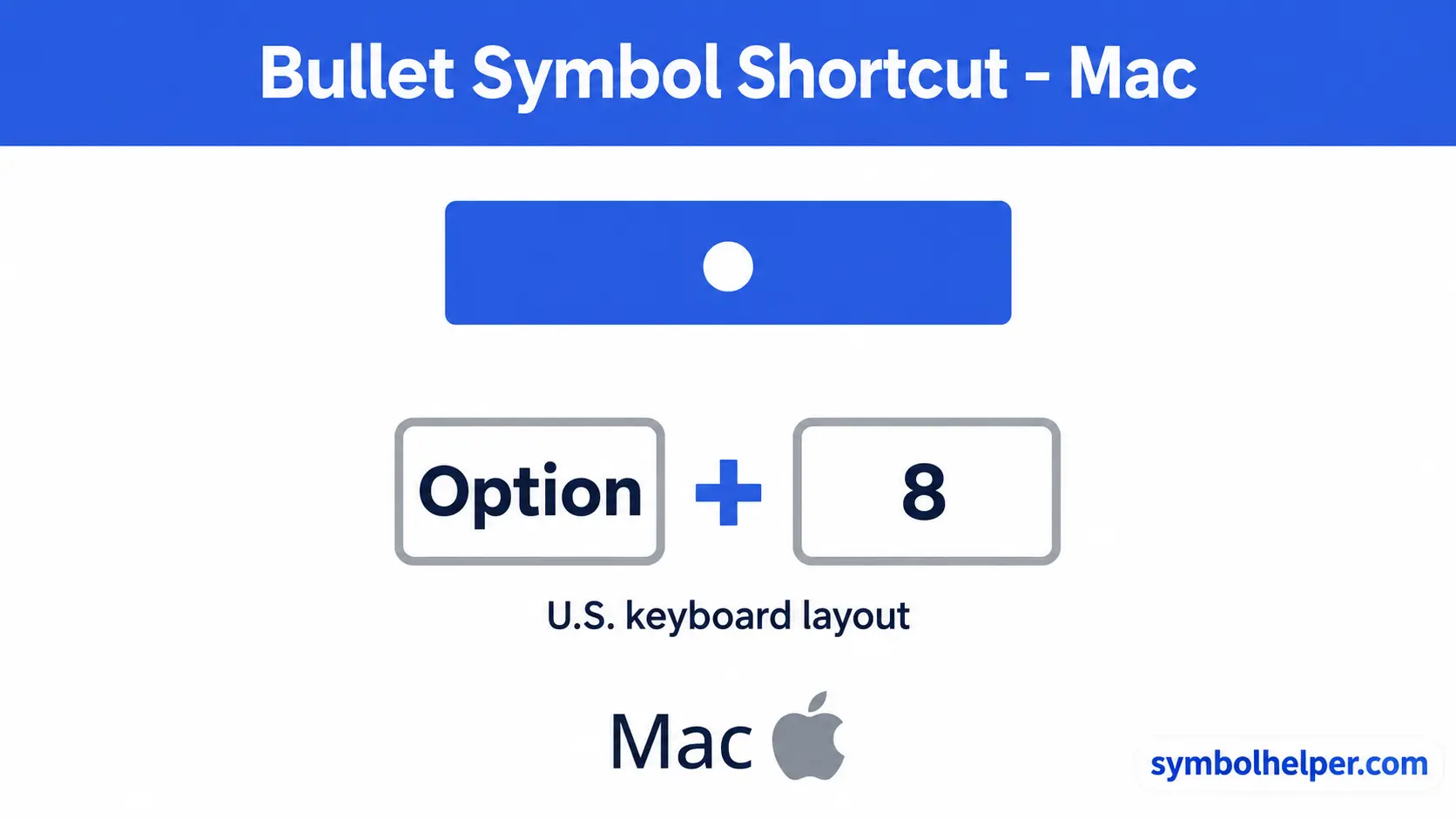
If your input source assigns those keys differently, use Character Viewer in the next method.
5. Mac: use Character Viewer
Character Viewer is useful when the keyboard shortcut is unavailable or you want to confirm the character you are inserting.
- Place the cursor in your text.
- Choose Edit → Emoji & Symbols.
- Search for bullet.
- Choose the filled •. In the expanded viewer, double-click the character to insert it.
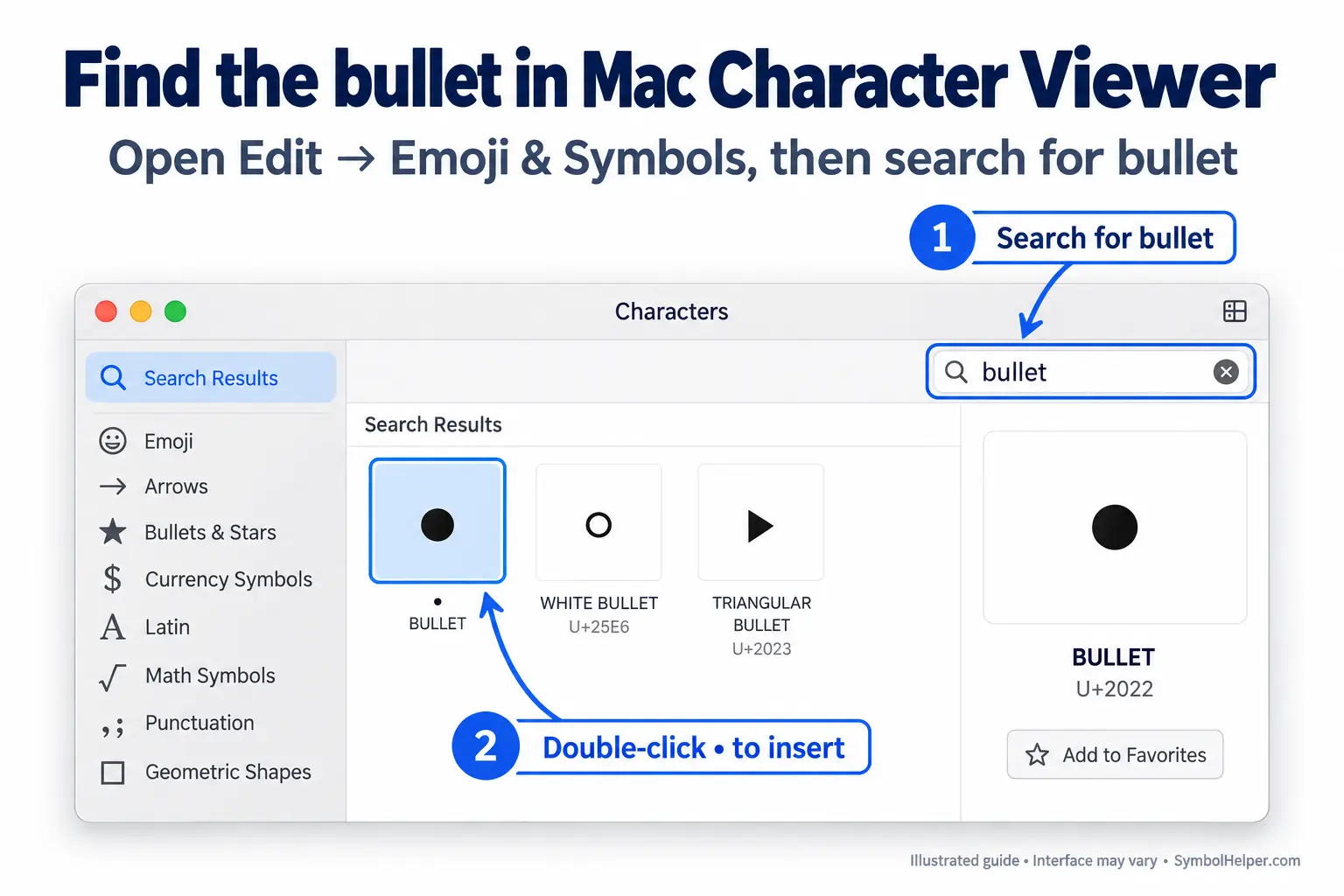
The viewer can display several similar symbols. Choose the filled bullet • if that is the character you need. Apple explains how to search for and insert characters in its Character Viewer guide.
6. Word, Excel and PowerPoint: use Symbol menus
In the desktop Windows versions of these Office apps, the Symbol dialog inserts a standalone character. It does not turn the paragraph into a formatted list.
Open the Symbol dialog
- Word: click where you want •, then choose Insert → Symbol → More Symbols.
- Excel: select a cell, then choose Insert → Symbol.
- PowerPoint: click inside a text box or text placeholder, then choose Insert → Symbol. Depending on the ribbon layout, Symbol may be inside the Symbols group.
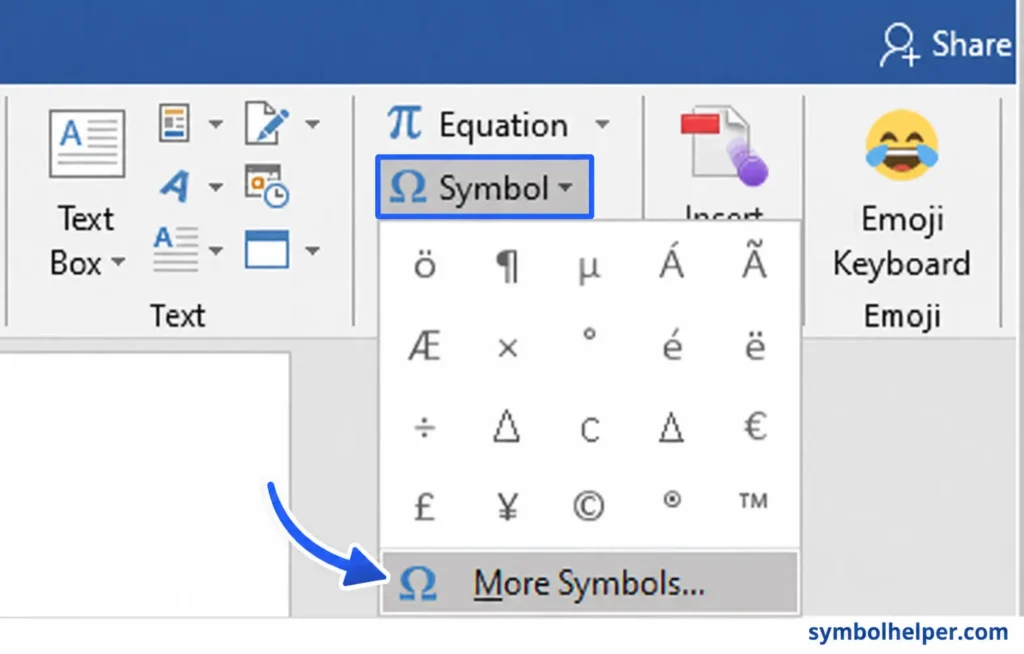
Select and insert the bullet
- In the Symbols tab, choose a text font such as Arial or Calibri. The available characters depend on the font.
- Set from to Unicode (hex) if that option is available.
- Enter 2022 in Character code. Alternatively, choose General Punctuation in the Subset menu and locate •.
- Confirm that the selected character is the filled bullet •, then click Insert.
- Close the dialog and continue typing.
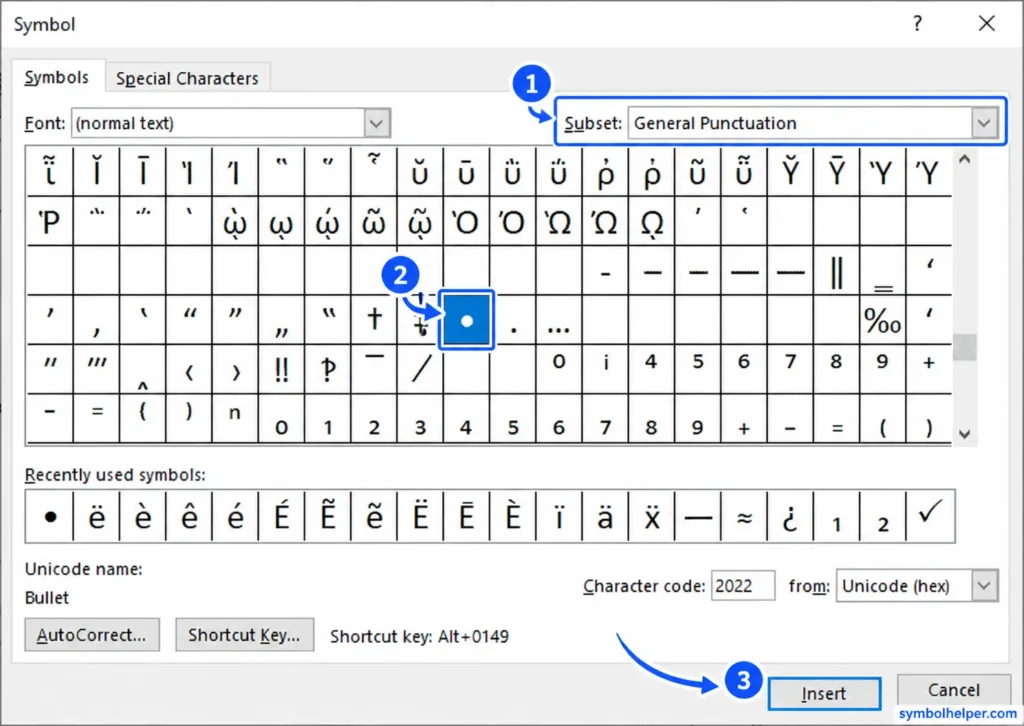
These steps use the Unicode bullet, U+2022. Symbol-font character codes can mean something different, so keep the font and encoding settings in mind. See Microsoft’s guides for Word’s Symbol dialog, Excel bullets, and PowerPoint’s Symbol dialog.
Excel: place bullets inside a cell
For a single bullet inside existing cell text, edit the cell and place the cursor at the insertion point before pasting •. For a blank cell, use Insert → Symbol and the steps above. In Excel for Windows, press Alt + Enter while editing a cell to start another line in the same cell, then insert or paste another bullet. See Microsoft’s worksheet bullet instructions.
Keep bullets in labels or descriptive text when possible. Adding a bullet to a number changes what the cell contains and may interfere with calculations.
Office on Mac and in a browser
Mac menus differ: Word offers Insert → Advanced Symbol, while Excel and PowerPoint offer Insert → Symbol with Character Viewer. You can also use the Mac Character Viewer method above. Microsoft describes these Office for Mac symbol options. If your browser version lacks the desktop Symbol dialog, copy • from this page.
7. Word for Windows: convert 2022 with Alt + X
For one bullet inside a line of text, Word for Windows can convert its Unicode code into the character. This method does not require a numeric keypad:
- Click at the insertion point in your Word document.
- Type 2022.
- Select just those four digits.
- Press Alt + X. Word changes the selected code into •.
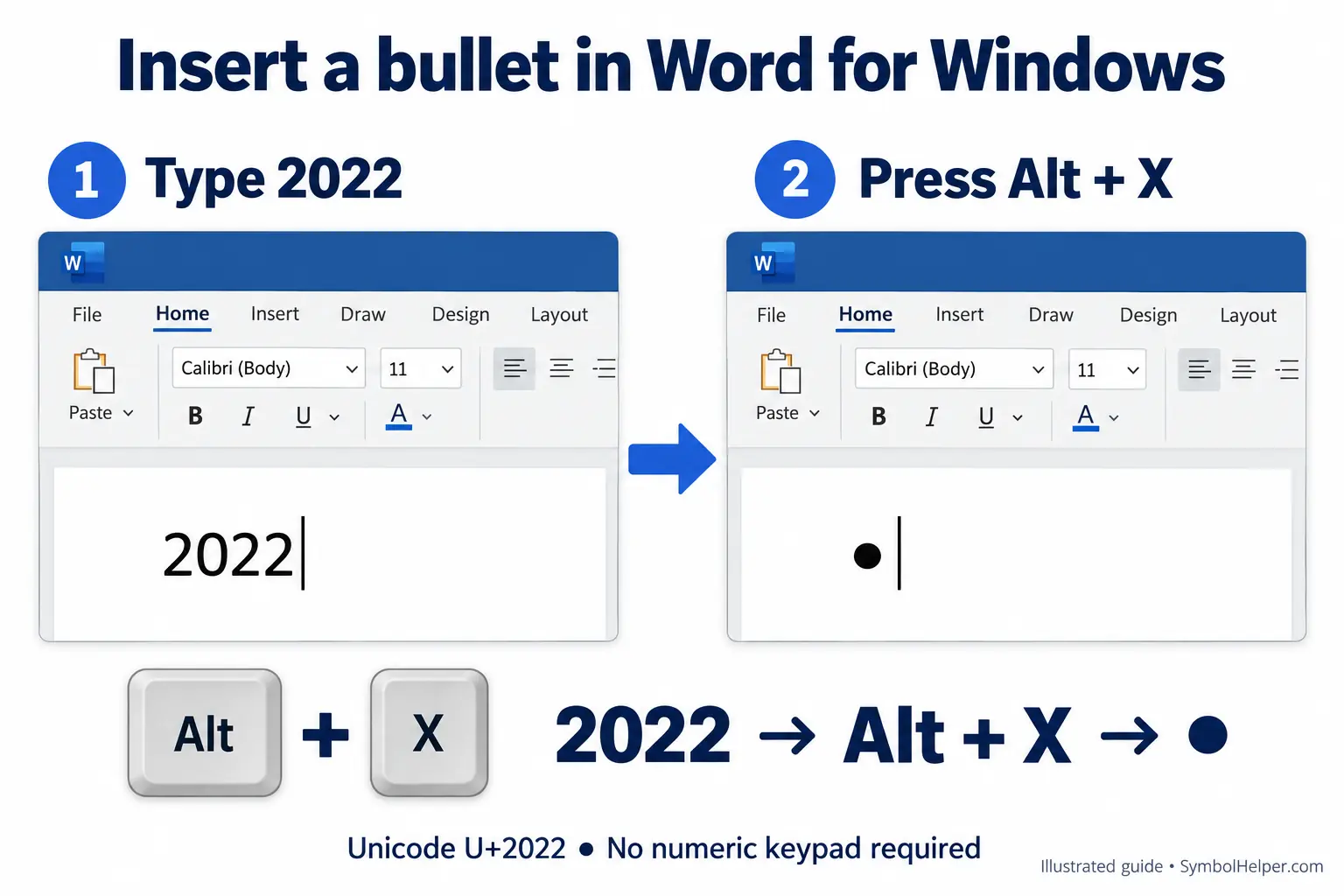
Selecting only 2022 prevents nearby letters or digits from being interpreted as part of the code. This is Word’s Unicode conversion method; it is not a universal shortcut for Excel, PowerPoint or Google Docs. To use a menu instead, follow the Office Symbol dialog steps above.
8. Google Docs: use Special characters
For a separator such as Monday • Wednesday • Friday, paste • directly into the line. You can also use Google Docs’ character picker:
- Click where you want the standalone bullet.
- Choose Insert → Symbols → Special characters. In some interfaces, Special characters appears directly under Insert.
- Enter 2022 in the character search box to find the Unicode bullet.
- Click • to insert it, then close the picker.

Google supports finding special characters by Unicode value in its special-character instructions. This inserts an ordinary text character; it does not activate automatic list formatting.
Create a formatted bulleted list
A formatted list automatically aligns its items and continues when you press Enter. Choose your application below. These commands format paragraphs; they do not insert one bullet into the middle of a sentence.
Microsoft Word: Home → Bullets
For several list items, use Word’s list formatting so wrapped lines align and new bullets continue automatically:
- Select the paragraphs you want to turn into a list, or click in an empty paragraph.
- Open Home and click the arrow beside Bullets in the Paragraph group.
- Choose the filled round bullet from the Bullet Library.
- Type your first item and press Enter for the next one. Press Enter again on an empty list item to end the list.
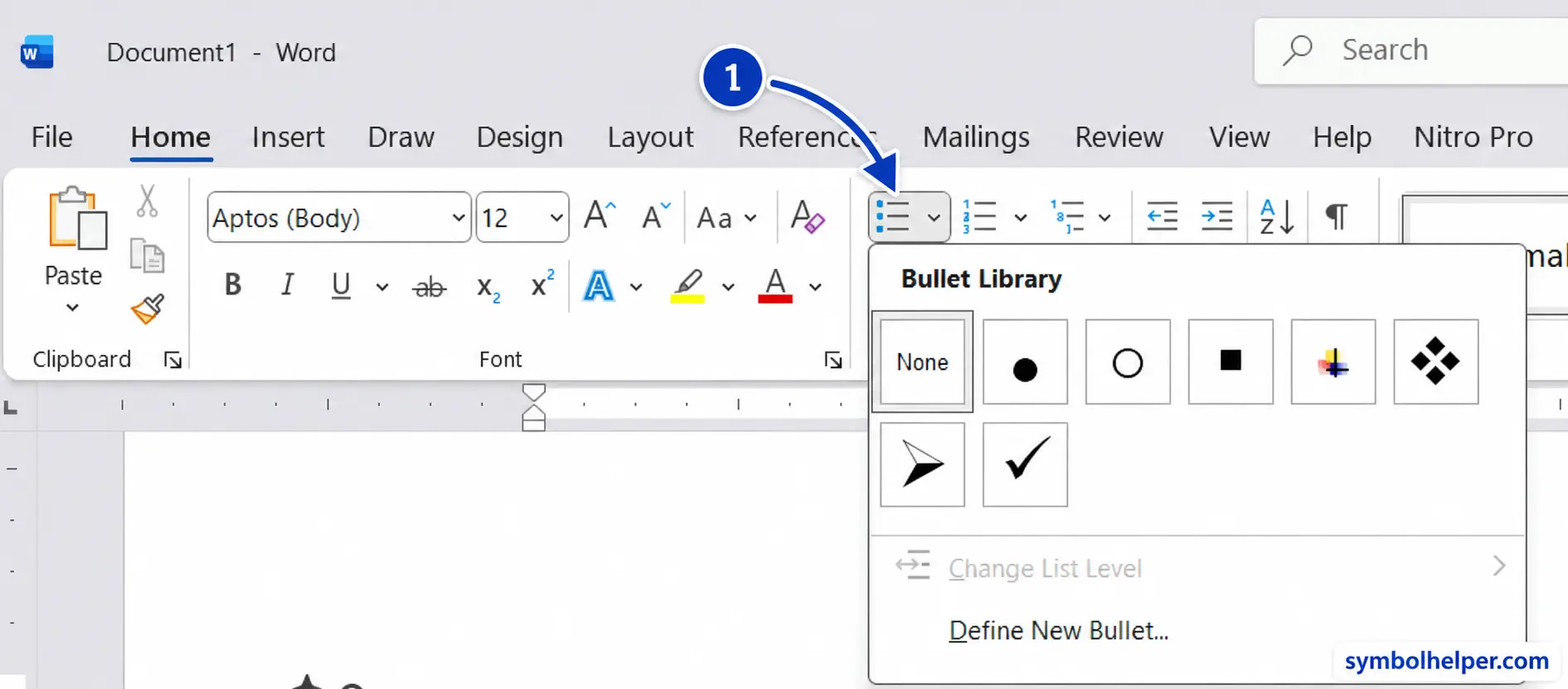
In Word for Windows, Ctrl + Shift + L also applies bulleted-list formatting. See Microsoft’s Word keyboard shortcuts. This command formats a list rather than inserting one dot inside a sentence.
PowerPoint: add bullets to slide text
For a slide list, use PowerPoint’s list formatting. For one bullet inside a sentence, follow method 6 or paste •.
- Click inside a text box or content placeholder, or select existing lines.
- On the Home tab, choose Bullets in the Paragraph group. Use its dropdown to pick a round bullet style.
- Type a list item, then press Enter for the next item. Click Bullets again to turn the formatting off.
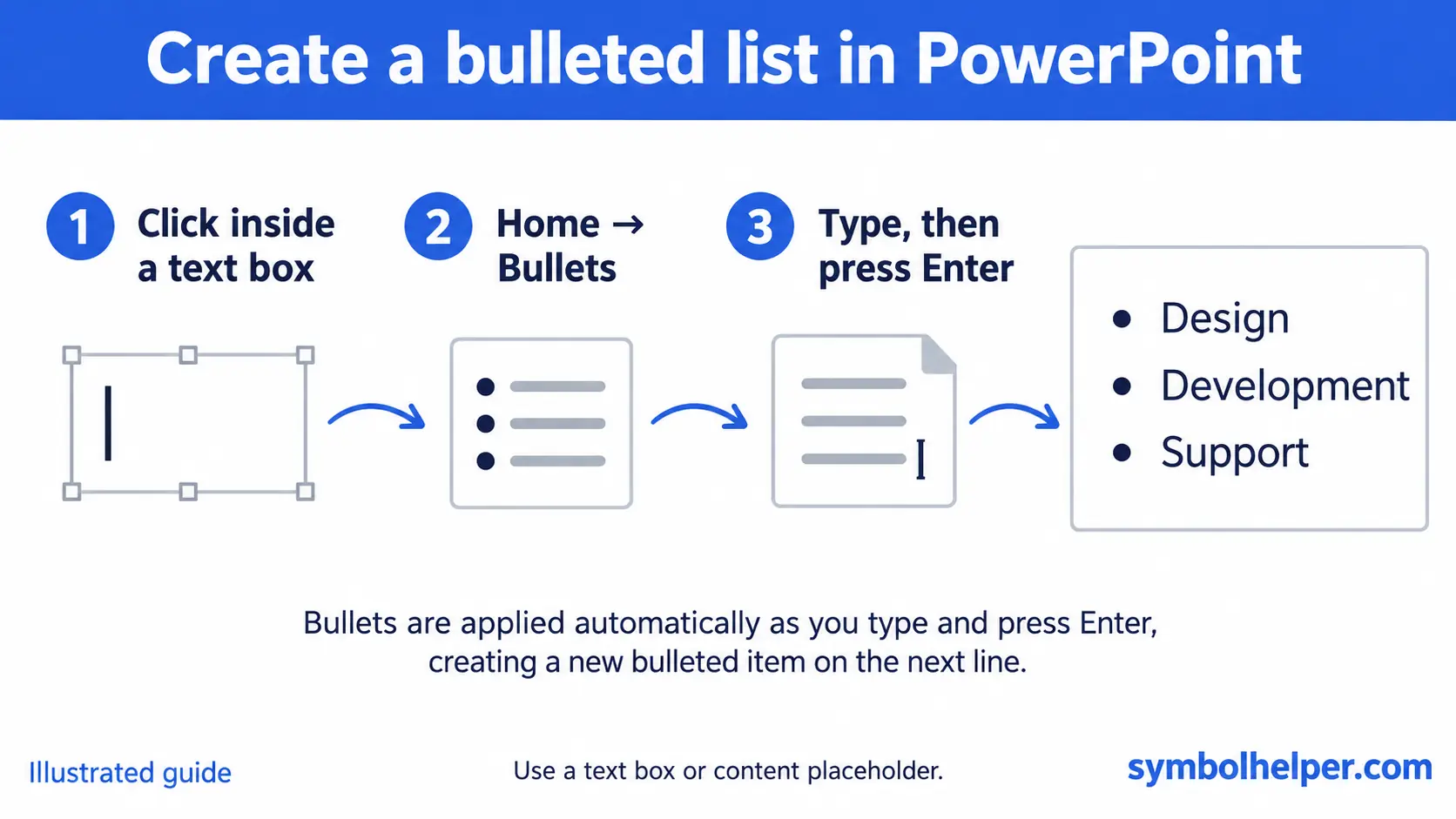
Use a text box or content placeholder rather than a title placeholder for a normal multi-item list. Microsoft explains the difference in its PowerPoint bullet instructions.
Google Docs: create a bulleted list
On a computer, use the Format menu to choose the list style:
- Click in a paragraph, or select the paragraphs you want to format.
- Choose Format → Bullets & numbering → Bulleted list. Some versions label the submenu Bulleted list menu.
- Choose a list style with filled round bullets.
- Type your first item. Press Enter for the next bullet; press Enter again on an empty list item to finish.
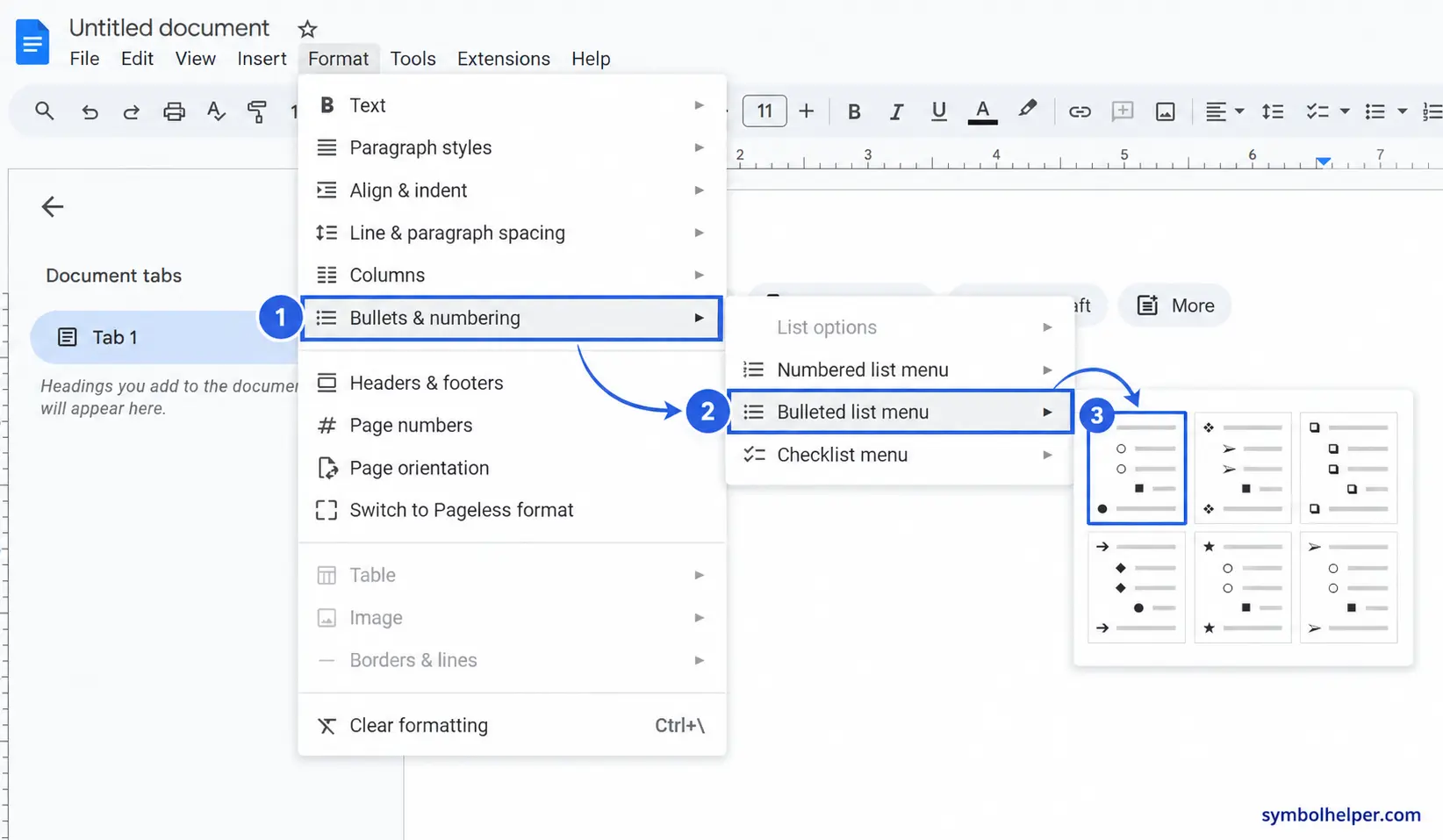
You can also choose Bulleted list from the toolbar, or press Ctrl + Shift + 8 on Windows or Command + Shift + 8 on Mac. These commands create a list, not an inline dot. See Google’s list-formatting instructions and Google Docs keyboard shortcuts.
Another Google Docs option: at the beginning of a paragraph, type * followed by a space. When automatic list detection is enabled, Docs turns it into a bulleted list. If nothing changes, use the toolbar or Format menu. Google documents this in its Docs editing guide.
How to enter a bullet on iPhone and Android
The available symbols depend on your keyboard app and language settings. Open the numbers or symbols screen and look for a bullet. If you cannot find it:
- Copy • using the tool above.
- Touch and hold the destination text field.
- Choose Paste.
If automatic copying is unavailable, expand the manual-copy option and use your device’s Copy command. For a list in a document app, check its formatting toolbar for a bulleted-list control. Pasting the character alone does not activate automatic list formatting.
Bullet point not working? Common fixes
Alt + 0149 does nothing
Check that you are using the numeric keypad, not the top number row. Confirm Num Lock is enabled where required. If you have no keypad, use copy and paste, Word’s Unicode method, or a symbol picker.
The shortcut starts a list instead of typing one dot
You used a list-formatting command. Undo it and insert • directly if you need a character inside a sentence.
The bullet looks smaller or larger after pasting
The appearance of a character depends on the font and formatting. Apply the surrounding text’s font and size before deciding whether you copied the wrong symbol.
Bullets do not line up consistently
Use your application’s bulleted-list feature. Repeated spaces and manually typed bullets are harder to maintain when text wraps onto another line.
Frequently asked questions
Is • the same as a middle dot?
No. • is the bullet character, U+2022, listed in Unicode’s General Punctuation chart (PDF). The middle dot · is a different character, U+00B7, listed in the Latin-1 Supplement chart (PDF).
Can I use bullets without a numeric keypad?
Yes. Copy and paste •, use a character picker, or use Word’s 2022 → Alt + X conversion.
What is the HTML code for a bullet?
In HTML source, use •, •, or •. In an ordinary message or document, paste the actual • character instead.
For more characters, browse our punctuation symbols or Alt code and Unicode reference. For another list marker, see how to type a check mark.